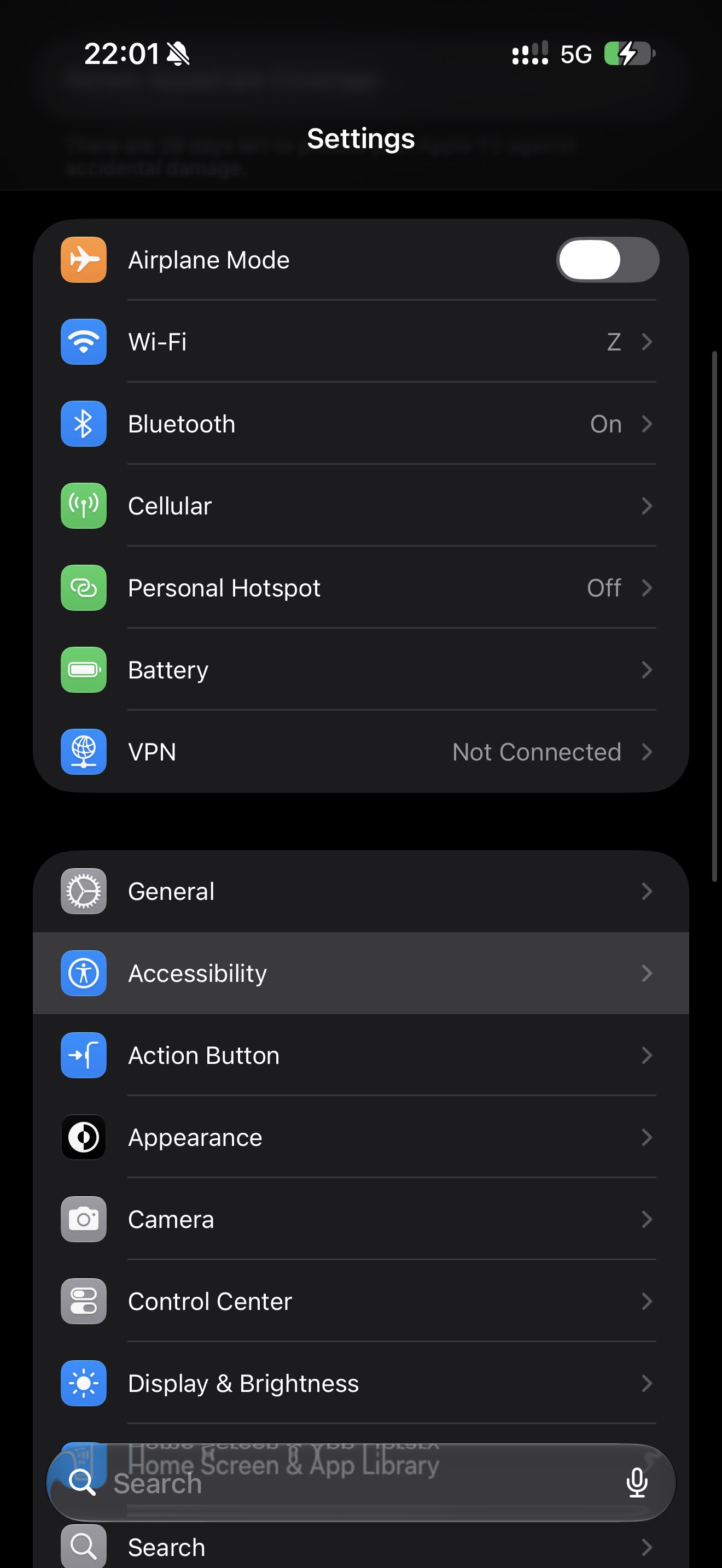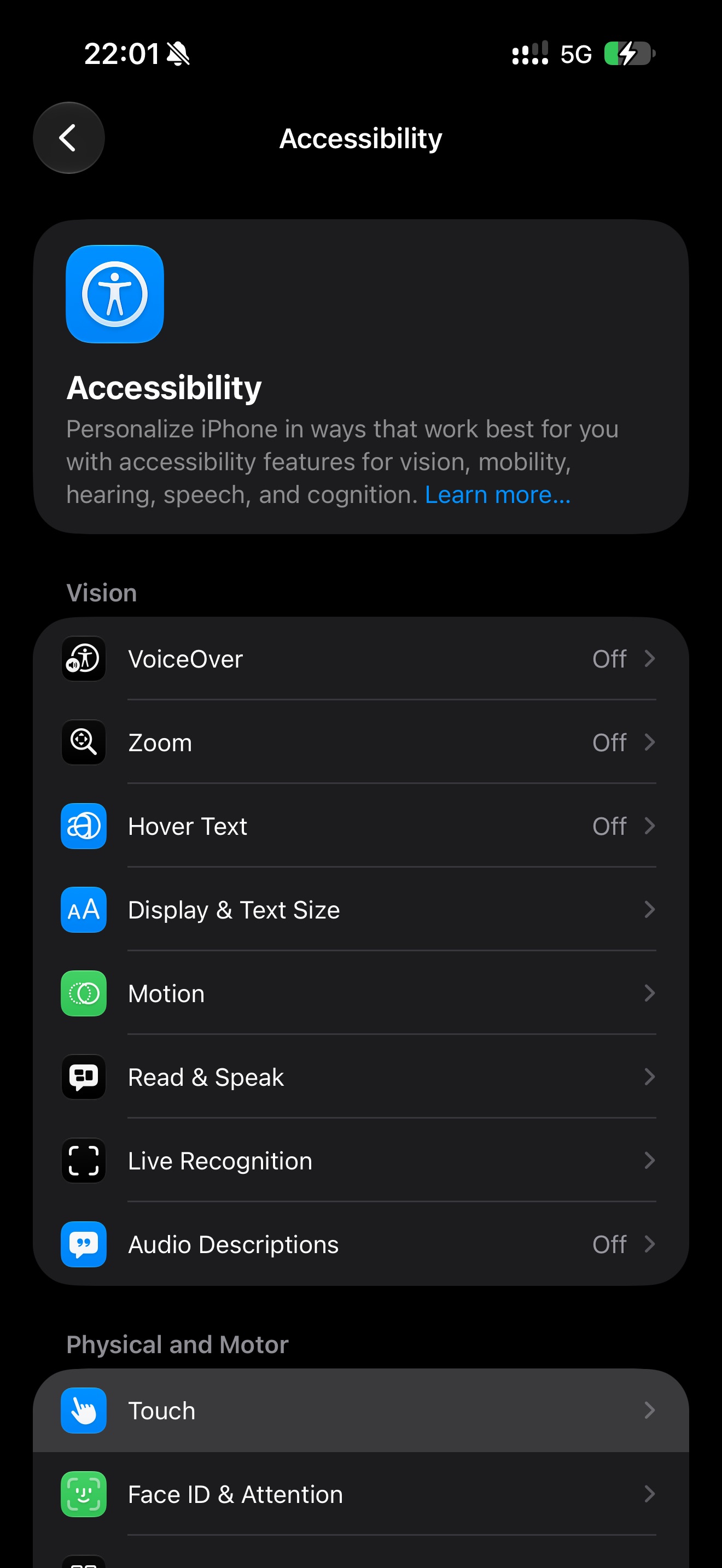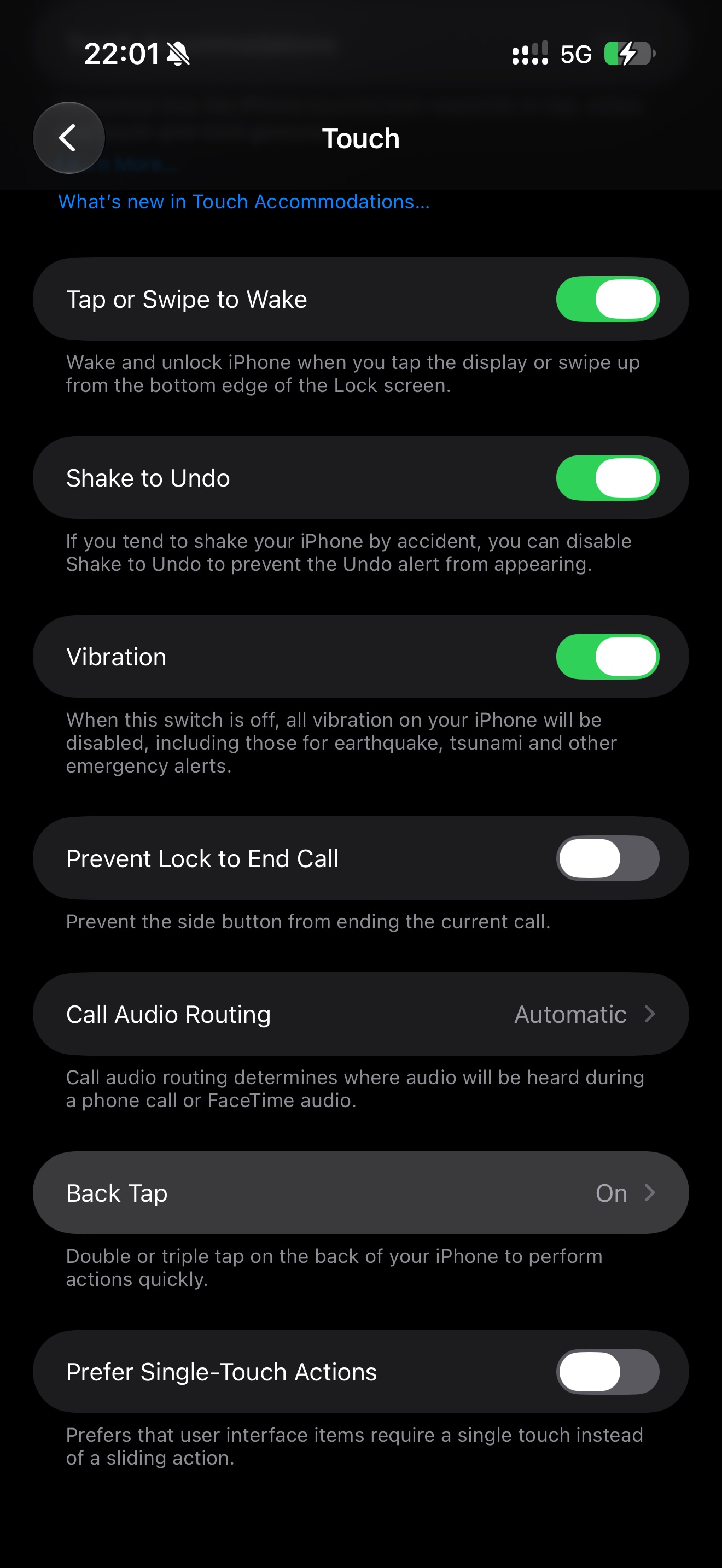
Screencapture Shortcut
Set it up on the Action Button, Back Tap, or both, depending on your preference and iPhone model. The Action Button is on iPhone 15 Pro and later, while Back Tap works on iPhone 8 and later.
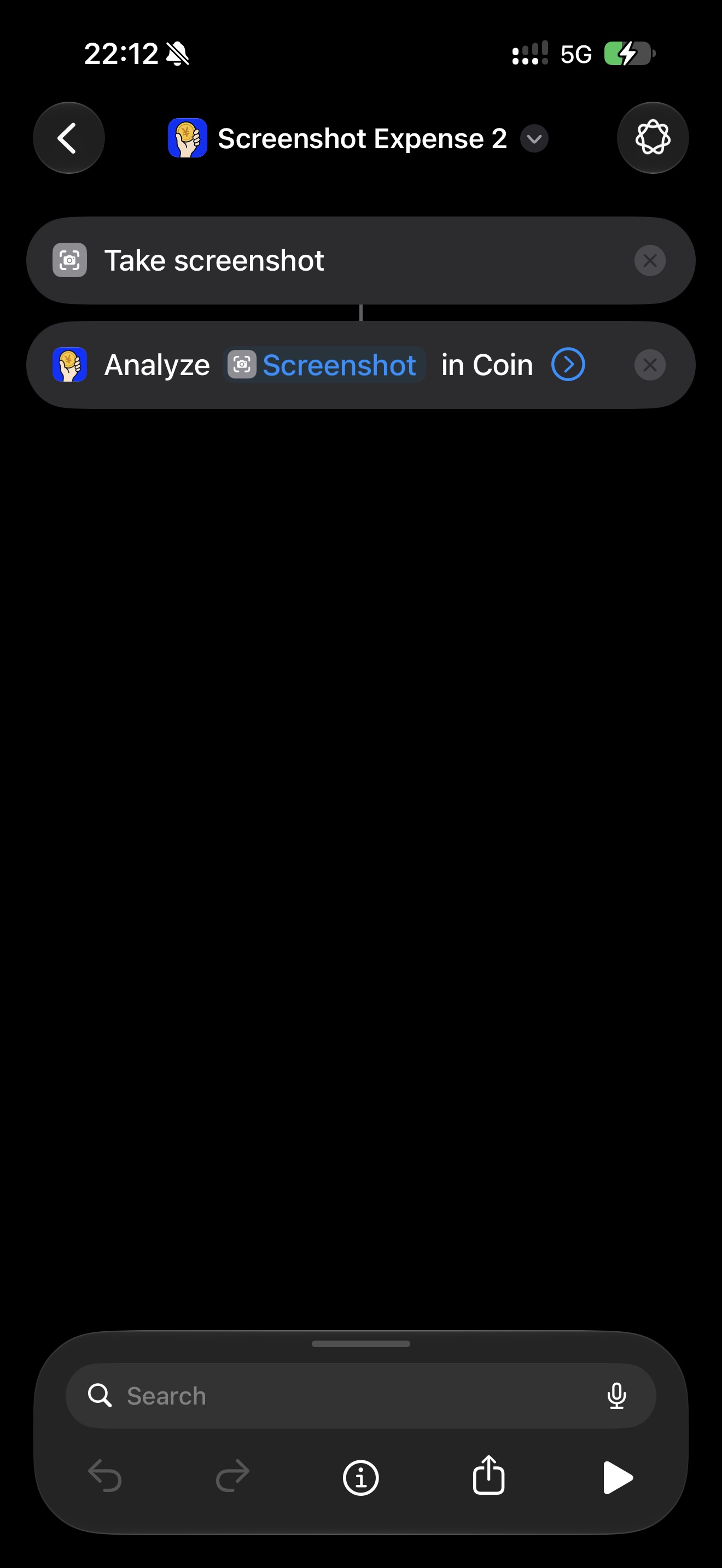
Add the Shortcut
- Get the Shortcut from the link, or set up the shortcut on your own in the Shortcuts app.
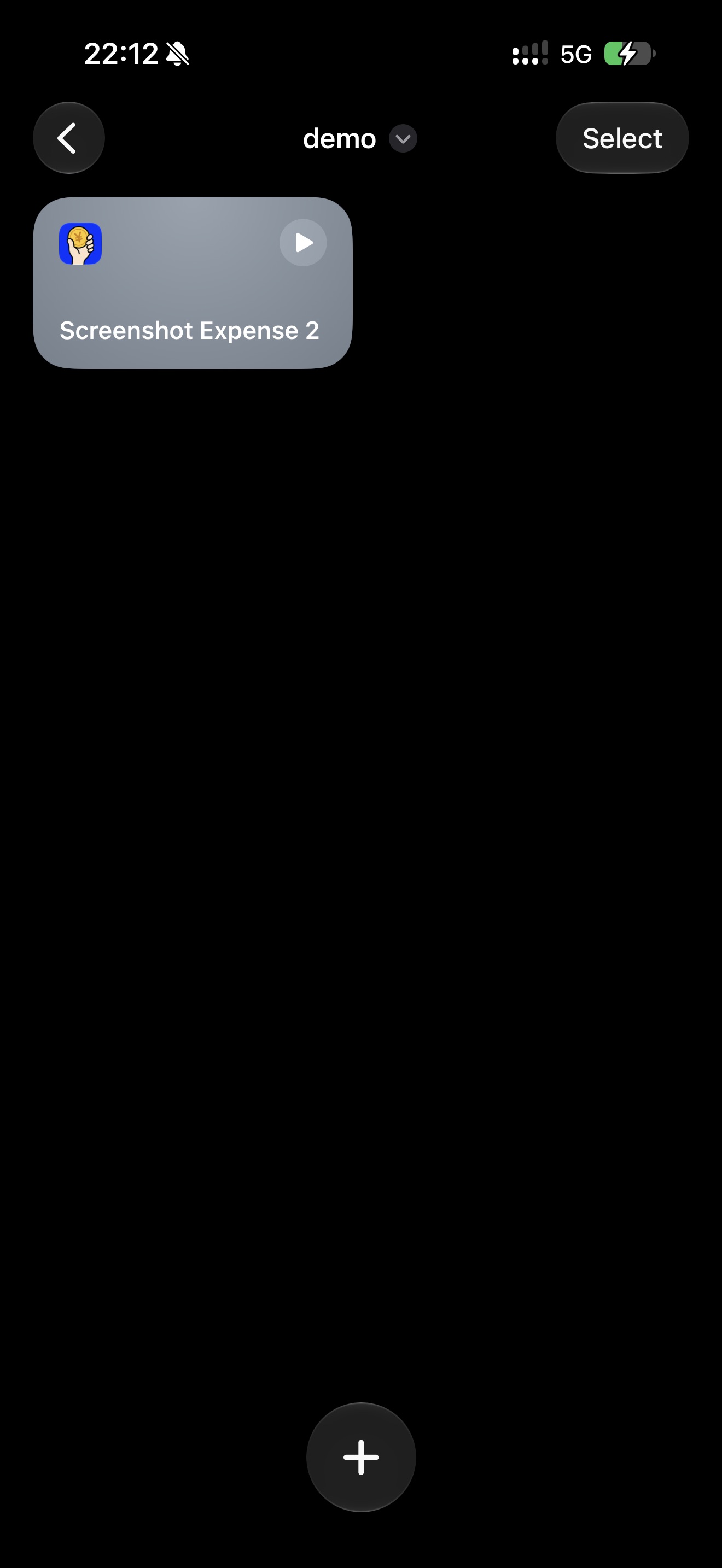
Action Button
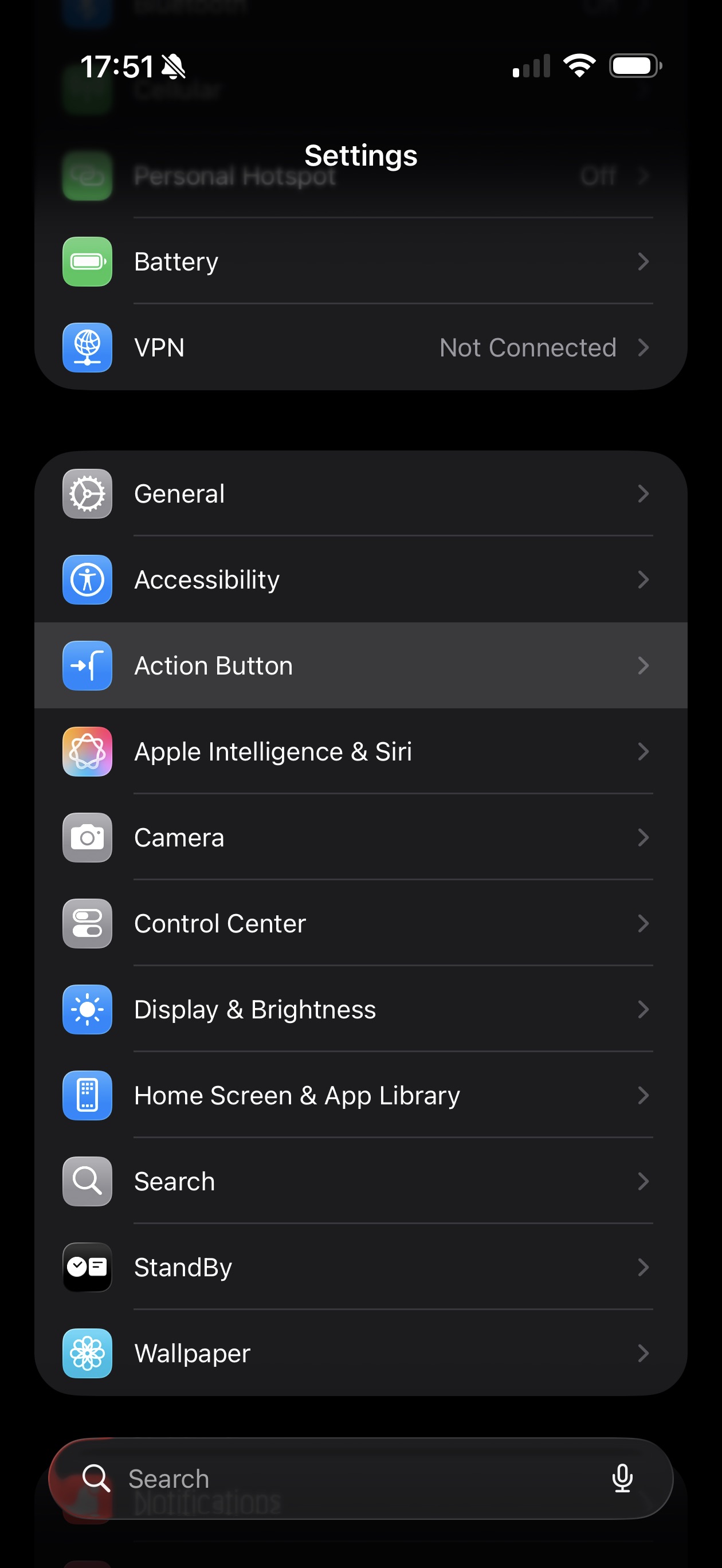
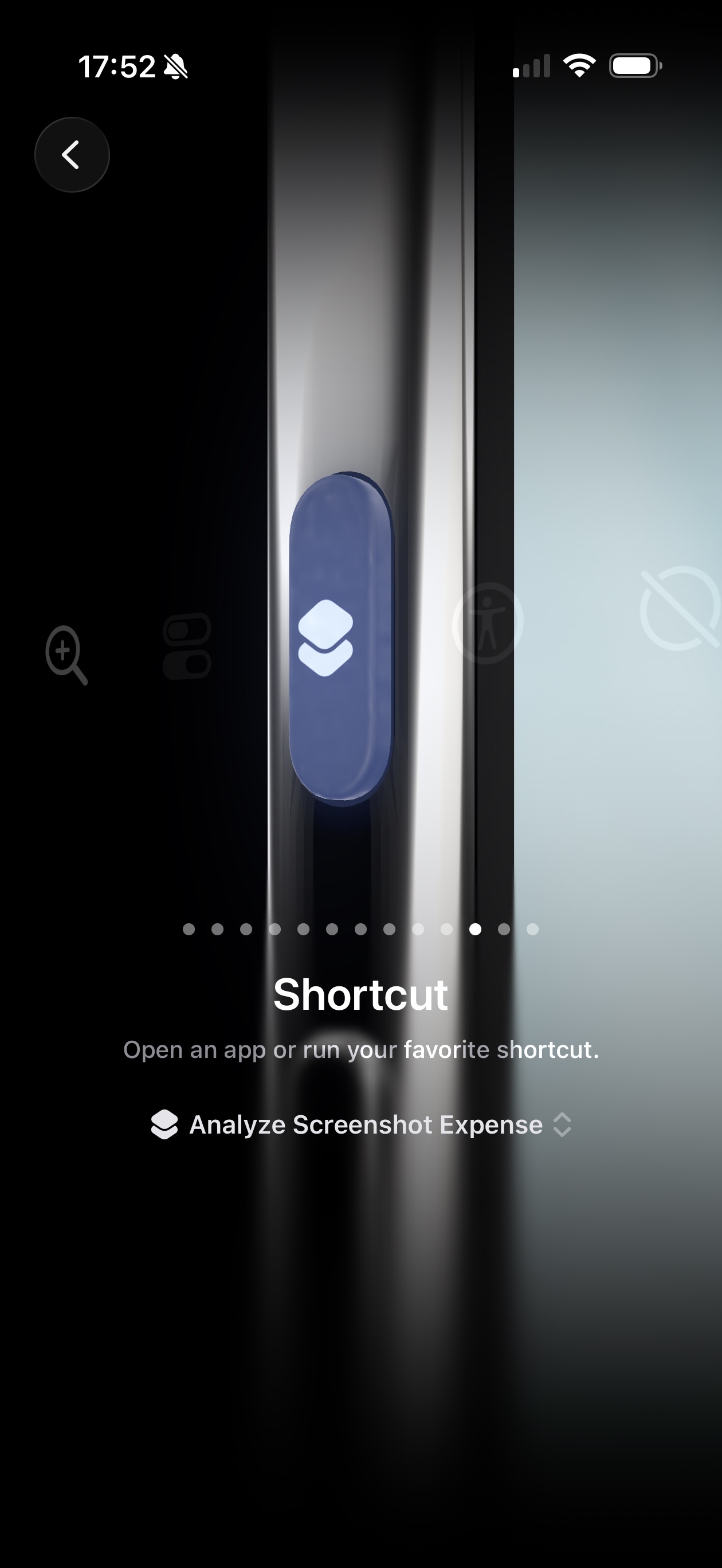
- Open Settings → Action Button, then swipe to Shortcut.
- Choose the shortcut you just added.
- Long press the Action Button on any screen. ohmycoin reads the screenshot on-device and shows an expense draft to review and save.
Back Tap
- Open Settings → Accessibility → Touch → Back Tap.
- Tap Double Tap or Triple Tap, then choose the shortcut.
- Double tap (or triple tap) the back of your iPhone on any screen. ohmycoin reads the screenshot on-device and shows an expense draft to review and save.